Handling Internal Inquiries in Teams: Publishing a Teams Bot Template
- Published
- Tags
- Teams, Azure, Terraform, TypeScript
Introduction
If a company uses Teams for chat and meetings, it can also handle internal inquiries and requests inside Teams. The entry point for that is a Teams Bot.
At client companies I support, I've built several Teams bots. Before more bots were needed, I published the shared foundation as a template in a public repository (MIT license).
This article covers three topics:
- The bot running at a client company and how it's used
- Why I turned the foundation into a template
- What the template makes easier, and the steps to get started
The detailed build steps are left to the README. The intended readers are people in IT and DX roles at companies that mainly use Teams.
1. Making inquiries in Teams instead of asking each time
One client has internal data that only a limited number of people can view. Previously, anyone who wanted to look at the data had to ask one of those people each time.
Now this inquiry is handled by a Teams Bot. The flow is as follows:
- Mention the bot in a shared channel.
- The bot returns a search form card.
- Enter the employee number, name, and search criteria in the form and send it.
- A message such as "Your reference request has been received" is posted to the channel with the requester's name.
- The search results are delivered only to the requester, via a private chat.
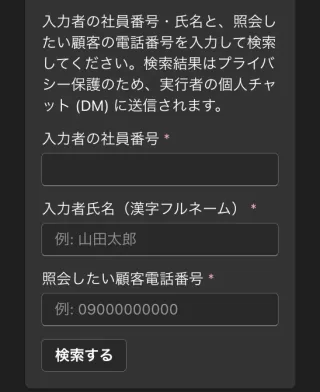
The reason requests are accepted in a shared channel is to keep a record of who looked at what and when. If data leaks, it can be traced back. The results themselves are not posted to the channel. They are sent only to the requester's private chat. Note that you cannot make an inquiry by talking to the bot in a private chat. The bot accepts requests only in channels or group chats.
Access is also restricted. The entered employee number is checked against an approved list, and then the combination of employee number and name is checked against the employee master.
2. Turning the foundation into a template before more bots were needed
I built one inquiry bot before the template existed. At that point, there were plans for several more Teams bots. In fact, besides the inquiry bot, I have built the following:
- Task management
- Work requests
- Attendance management
Apart from the logic specific to each bot, every Teams Bot needs the same foundation:
- Azure resources (Functions, Bot Service, app registration, monitoring, etc.)
- Bot Framework authentication and signature verification
- Deployment to stg and prod
- Creating the Teams app package
Without a template, I would have to rebuild all of this each time I made a bot. So I split the generic parts out of the inquiry bot and turned them into a template.
3. What the template makes easier
Azure resources are created with Terraform
All Azure resources are created with Terraform. stg and prod have separate directories and separate state. Running terraform apply in an environment's directory sets up that environment completely.
cd infra/envs/stg
terraform init
terraform plan
terraform apply
The following resources are created:
- Azure Functions (Flex Consumption plan)
- Azure Bot Service (registration of the Teams channel)
- App registration (for bot authentication)
- Key Vault (storage for the bot's credentials)
- Application Insights and Log Analytics (logging and monitoring)
- Storage Account (runtime foundation for Functions)
However, the organization needs a one-time setup in the Azure Portal. You create a service principal for GitHub Actions and a shared Key Vault. The second and later bots don't need this step.
CI/CD is ready from the start
The GitHub Actions workflows are included in the template.
- On PRs and pushes to main, lint, formatting, type checks, tests, and build run.
- From the Actions screen, you select an environment (
stgorprod) and deploy.
For configuration values such as external API keys, add just the key name on one line in .env.example. Write the values in .env.stg (or .env.prod for prod). This file is not committed to Git. Then make setup-secrets registers them as GitHub Secrets. Each deployment reflects those values into the Function App settings. You don't need to add key names to the workflows or scripts.
Bot logic goes in bot.ts
Messages from Teams are processed in the following order:
| File | Role | Edit |
|---|---|---|
src/functions/messages.ts |
HTTP entry point | Leave as is |
src/bot/adapter.ts |
Authentication and signature verification | Leave as is |
src/bot/bot.ts |
Message handling | Write code here |
The bot.ts scaffold includes three responses: a greeting, a help card, and an echo reply. You rewrite these and add the bot's own processing.
For internal bot usage, the monthly cost is nearly zero
Most of the Azure resources used fall within the free tier.
- Functions (Flex Consumption): free up to 250,000 executions and 100,000 GB-seconds per month
- Bot Service (F0): free
- Application Insights / Log Analytics: free up to 5 GB per month
For usage at the level of an internal bot, the only cost is a few yen for Storage.
4. Steps to get started, and what remains manual
You need the following beforehand:
- An Azure subscription (the one-time organization setup requires Owner permission on the subscription)
- Permission to upload apps in the Teams admin center
- Node.js 24, pnpm 9 or later, Azure CLI, GitHub CLI (
gh), Terraform (via tfenv), Azure Functions Core Tools, and jq
The steps to get started are as follows:
- Create your own repository from the template on GitHub.
- Decide the bot's name with
make setup-manifest. - Run
az login. Copyinfra/envs/terraform.tfvars.exampletoterraform.tfvars, and enter the project name, subscription ID, and the shared Key Vault name (the one created during the organization's one-time setup). - Run
terraform applyininfra/envs/stgto create the stg environment. - Run
gh auth login, then runmake setup-secretsto register the credentials that Actions uses for deployment in GitHub. - Run the "Deploy to Azure Functions" action. Select
stg, and checkAlso update the Teams app (when manifest.json changed). - Download the Teams app ZIP from the Actions run results and upload it in the Teams admin center.
If you check the box in step 6, Actions creates the Teams app ZIP together with the deployment. The bot ID and environment name are embedded in the manifest at that point. The ZIP is saved to Actions Artifacts under a name like teams-app-stg-1.
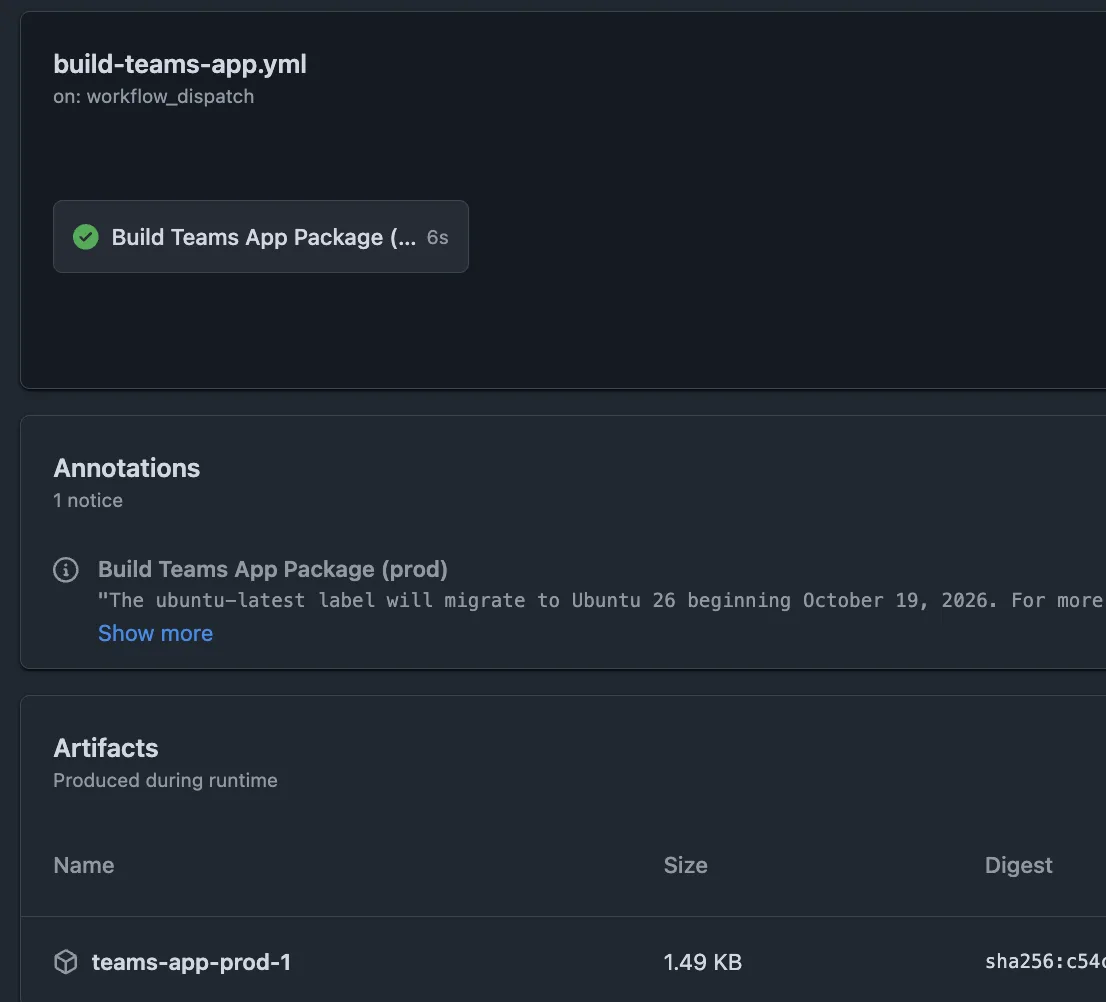
The one step that is still manual is the upload in step 7. The Graph API does not support automated deployment from CI/CD, so the procedure document covers this step.
Once the flow works in stg, you do the same in prod. The details of each step are in the repository's README and infra/README.ja.md.
Closing
At client companies, I've built Teams bots for inquiries, task management, work requests, and attendance. The inquiry bot lets people handle inquiries inside Teams that they used to confirm with someone every time.
Once the one-time setup for the organization is done, you can create bots from the second one onward without thinking much about the Azure side. The CI/CD foundation is also already in place. The developers at the client companies have appreciated these two points.
If you're building a Teams Bot, feel free to try this template.